
Visible area
One click — or Ctrl+Shift+1 — grabs exactly what is on screen, pixel-perfect on high-DPI displays.
CaptureFlow grabs the visible area, any region you drag, or a full scrolling page — then drops it straight into a proper annotation editor. Arrows, blur, step numbers, crop, export. Done in seconds.
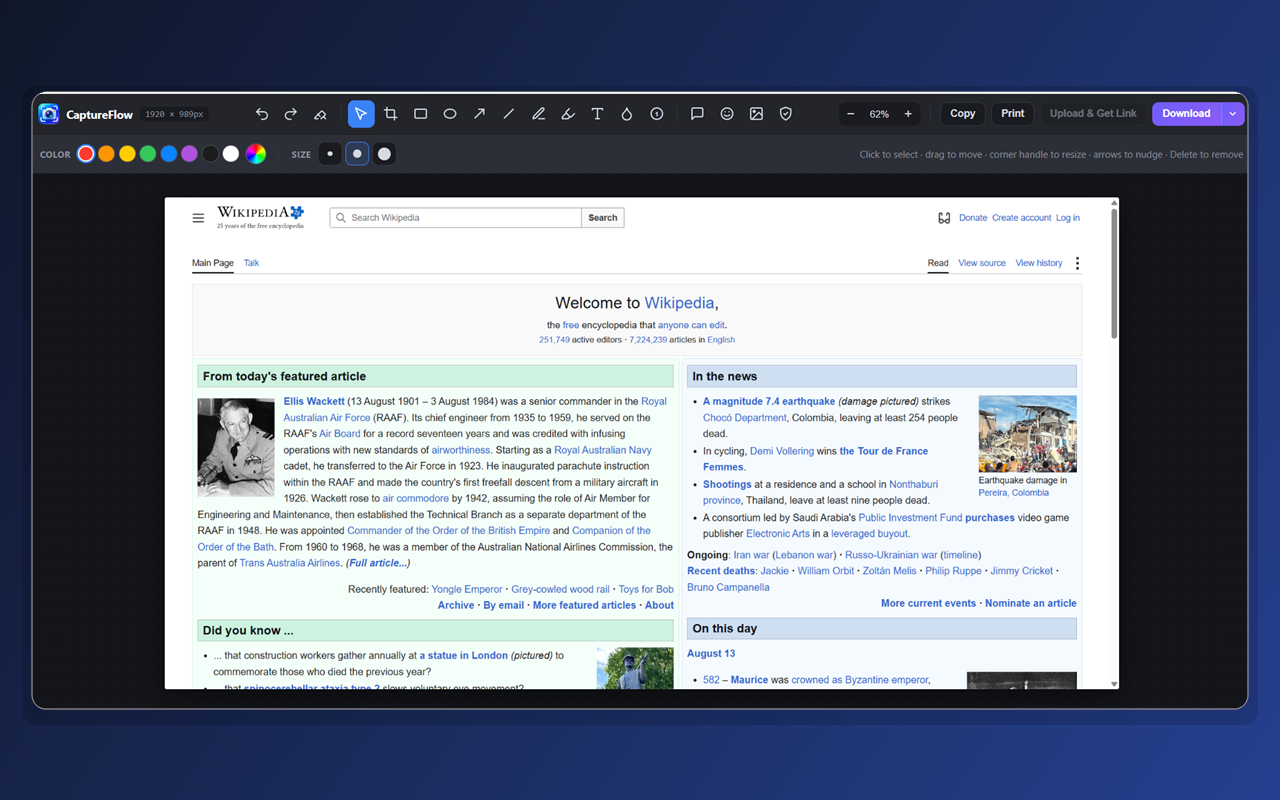
Bug reports, design feedback, tutorials, support replies — the whole loop from capture to shareable image lives inside your browser.
One click — or Ctrl+Shift+1 — grabs exactly what is on screen, pixel-perfect on high-DPI displays.
Drag a rectangle over anything. A live width × height readout follows your cursor so the crop is right the first time.
CaptureFlow scrolls the page for you, hides sticky headers after the first frame and stitches every slice into one tall image.
A 3-2-1 countdown gives you time to open a dropdown, trigger a hover state or focus a tooltip before the shutter fires.
Twelve tools — arrow, rectangle, ellipse, line, pen, highlighter, text, callout, step numbers, blur, crop, stamps — with unlimited undo.
PNG, JPG or WebP with size presets and a live file-size estimate. Or copy straight to the clipboard, or hit print.
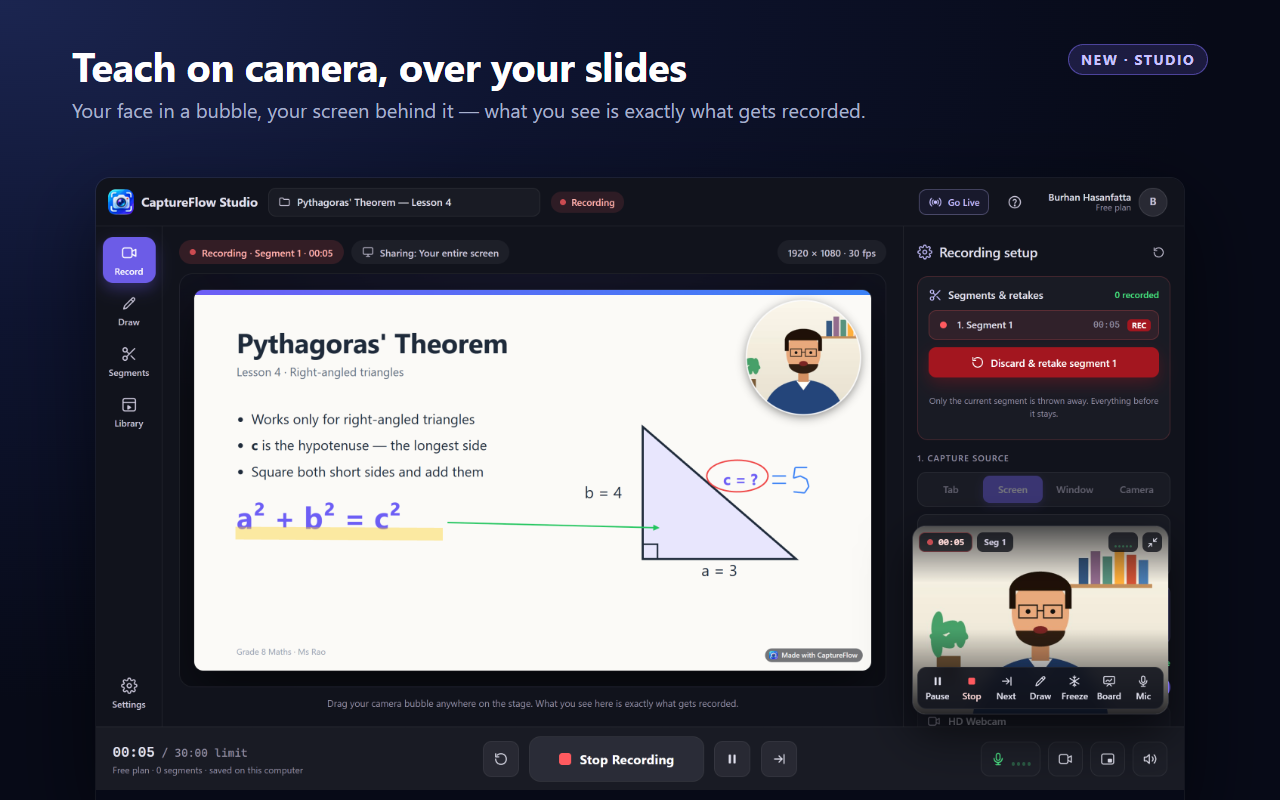
Studio is a full recording studio inside Chrome, made for teachers, tutors and anyone who explains things on video. Share your screen, put your face in a bubble, draw on your slides while you talk, and export a finished MP4.
Free: lessons up to 30 minutes with a small “Made with CaptureFlow” mark. Basic: unlimited lesson length and no mark.
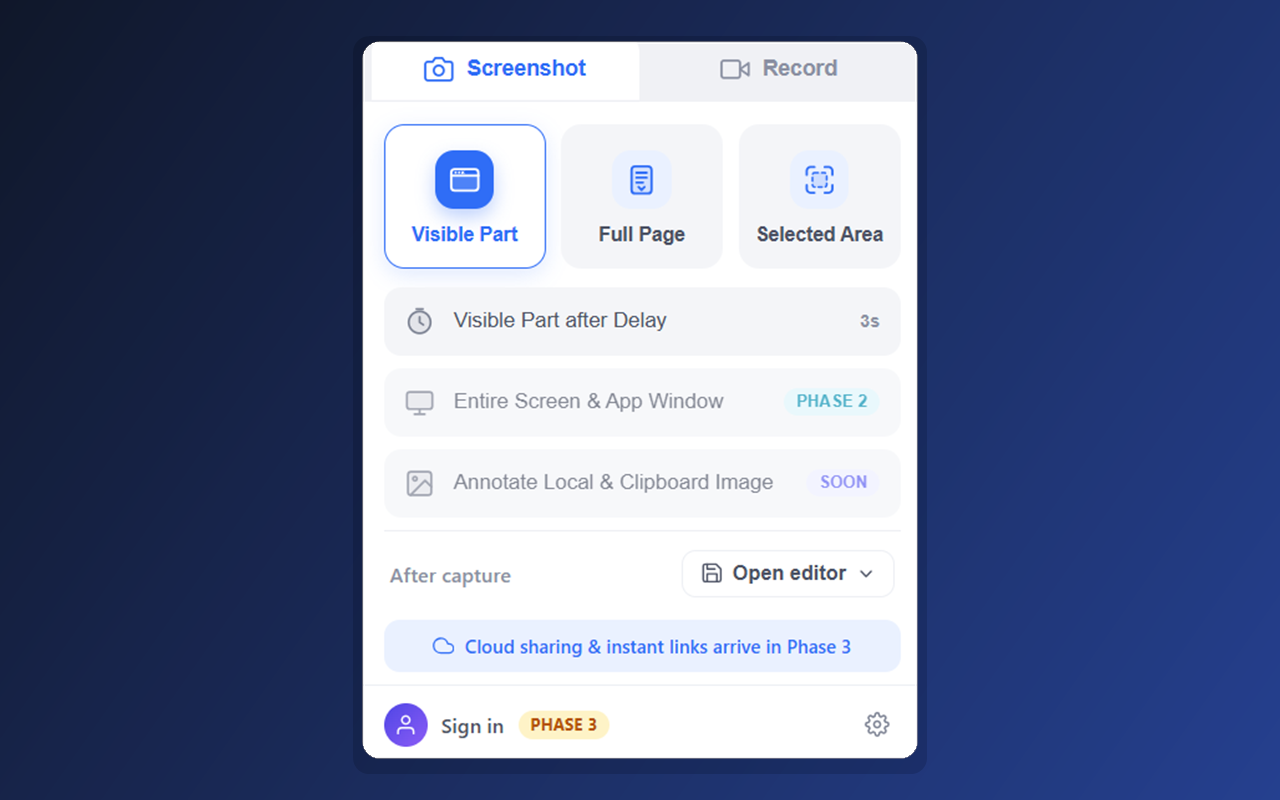
Click the toolbar icon, press a shortcut, or right-click the page. Pick visible area, region or full page.
The editor opens instantly with your image loaded. Point at what matters, blur what shouldn't be seen.
Download, copy to clipboard, print — or upload and send an instant share link.
Every annotation stays a live object until you export — move it, resize it, recolour it, delete it. Eight preset colours plus a custom picker, three stroke widths, and full undo/redo history.
No menus to hunt through. Pick your capture mode, set what happens after capture — open the editor or download straight away — and go. Your preferences are remembered.
Screenshots and annotation run entirely on your device — no account, no server, no analytics script, no telemetry ping. That half of CaptureFlow works completely offline and always will.
Screen recording needs a free account, created from your Google name and email and nothing else. Your recording is saved on your own machine, and it is uploaded only when you press Upload & get link on that particular capture. Nothing is ever uploaded automatically.
activeTab at install — Studio asks first before drawing on a pageScreenshots and annotation are unlimited on every plan — you only pay when you want longer recordings and serious cloud storage.
Everything you need for everyday screenshots.
No card, no account.
Get startedIncludes
For anyone who shares captures every day.
Or $58 a year — two months free.
See what's includedEverything in Free, plus
Teams, agencies and anything unusual.
Priced around your team size.
Email usEverything in Basic, plus
Recording, cloud share links and CaptureFlow Studio have shipped — see the roadmap.
Yes. Screenshots, all twelve annotation tools, and every export format are free with no account and no time limit. The paid Basic plan only unlocks longer recordings, higher recording quality and larger cloud storage.
No. Capture, annotation and export all happen inside your browser on your machine. Cloud upload is a separate, opt-in action that only happens when you press the upload button on a specific capture.
Any Chromium-based browser on Manifest V3 — Google Chrome, Microsoft Edge, Brave, Opera, Arc and Vivaldi. Firefox and Safari are not supported yet.
Only the minimum: activeTab to capture the tab you are on at the moment you ask, scripting to draw the region overlay and the recording bar, downloads to save the file, clipboardWrite for Copy, contextMenus for the right-click entry, storage for your own settings, tabCapture to record the one tab you picked, offscreen to hold the recorder while it runs, alarms to clear out recordings you never claimed, and unlimitedStorage so long Studio lessons can be kept on your own computer. The only site it talks to is captureflow.pro, and there is no remote code. One permission is optional: the first time you press Draw on this tab in Studio, Chrome asks whether CaptureFlow may draw on websites. It is used only to put your ink on the page you are teaching from — say no and everything else still works. Every one is explained on the privacy page.
A lesson recorder built into the extension. Open it from the Studio tab in the popup, pick your screen, a window, a tab or just your camera, and record. You can draw on whatever you are showing, pause, and record in segments so a mistake only costs you one part. When you are done, export an MP4 or WebM, or upload it for a share link. Lessons are saved on your own computer. The free plan records lessons up to 30 minutes with a small “Made with CaptureFlow” mark; Basic removes the limit and the mark.
Yes — record a tab, a whole screen or window, or drag a box around just the part of the page you want. Pause and resume mid-take, add your microphone for narration, then stop and choose a share link or a download. The changelog tracks what shipped when.
Install CaptureFlow, press Ctrl Shift 2, and see the difference on the very first capture.